How to Create Emails in NOAN: A Step-by-Step Guide
Email is still the backbone of business communication, but writing, replying, and segmenting messages can eat up your day. NOAN’s AI-native workspace flips the script—making email creation, personalization, and follow-up seamless, smart, and scalable. Here’s how to unlock the full power of email with NOAN.
1. Connect Your Gmail for Effortless Email Management
**Why it matters:**By connecting your Gmail account, you enable NOAN’s assistant to read, summarize, and act on your emails—directly from your workspace.
How to do it:
-
Go to Settings > Integrations in NOAN.
-
Click Connect Gmail and follow the prompts to securely link your account.
-
Once connected, you’ll see your emails in the assistant workspace, in your Network, and on each contact’s page.
**Pro Tip:**You can now ask the assistant to summarize your inbox, find specific emails, or even create tasks from email content.
2. Ask the Assistant to Reply to Emails—Instantly
**Why it matters:**No more copy-pasting or switching tabs. The assistant can draft, personalize, and even send replies for you.
How to do it:
-
In the assistant chat, say:“Reply to the latest email from [Contact Name] and thank them for their feedback.”
-
Or,“Draft a follow-up to [Contact Name] about our meeting next week.”
-
The assistant will pull in the context from the email thread and your business knowledge, then generate a reply you can review, edit, and send.
**Bonus:**You can set the tone for your reply (see section 4).
3. Draft Emails Based on Contact Data in Network
**Why it matters:**NOAN’s Network isn’t just a contact list—it’s a living database of your relationships, complete with memos, roles, and tags.
How to do it:
-
In the assistant, try:“Draft an introduction email to [Contact Name] based on their role and our last conversation.”
-
Or,“Write a partnership proposal for all contacts tagged ‘Potential Partner’.”
-
The assistant will use memos, company roles, and tags to tailor each message—no manual research required.
**Pro Tip:**Batch email creation is possible—just specify the segment or tag, and the assistant will generate personalized drafts for each contact.
4. Use Custom Tones for Segment-Specific Emails
**Why it matters:**Different audiences respond to different voices. NOAN lets you define tones (e.g., “formal,” “friendly,” “playful”) and apply them on demand.
How to do it:
-
Add your preferred tones in Settings > Assistant Tones.
-
When drafting an email, select the tone in the tone switcher or specify a specific tone to the Assistant:“Draft a welcome email for new users in a friendly, encouraging tone.”
-
Or,“Reply to [Contact Name] in a formal, concise style.”
-
The assistant will adapt the language, structure, and even the sign-off to match your chosen tone.
**Pro Tip:**Assign tones to specific segments using a Memory(e.g., “Use a consultative tone for enterprise clients”) for even more automation.
5. Advanced: Automate Email Workflows with Tags
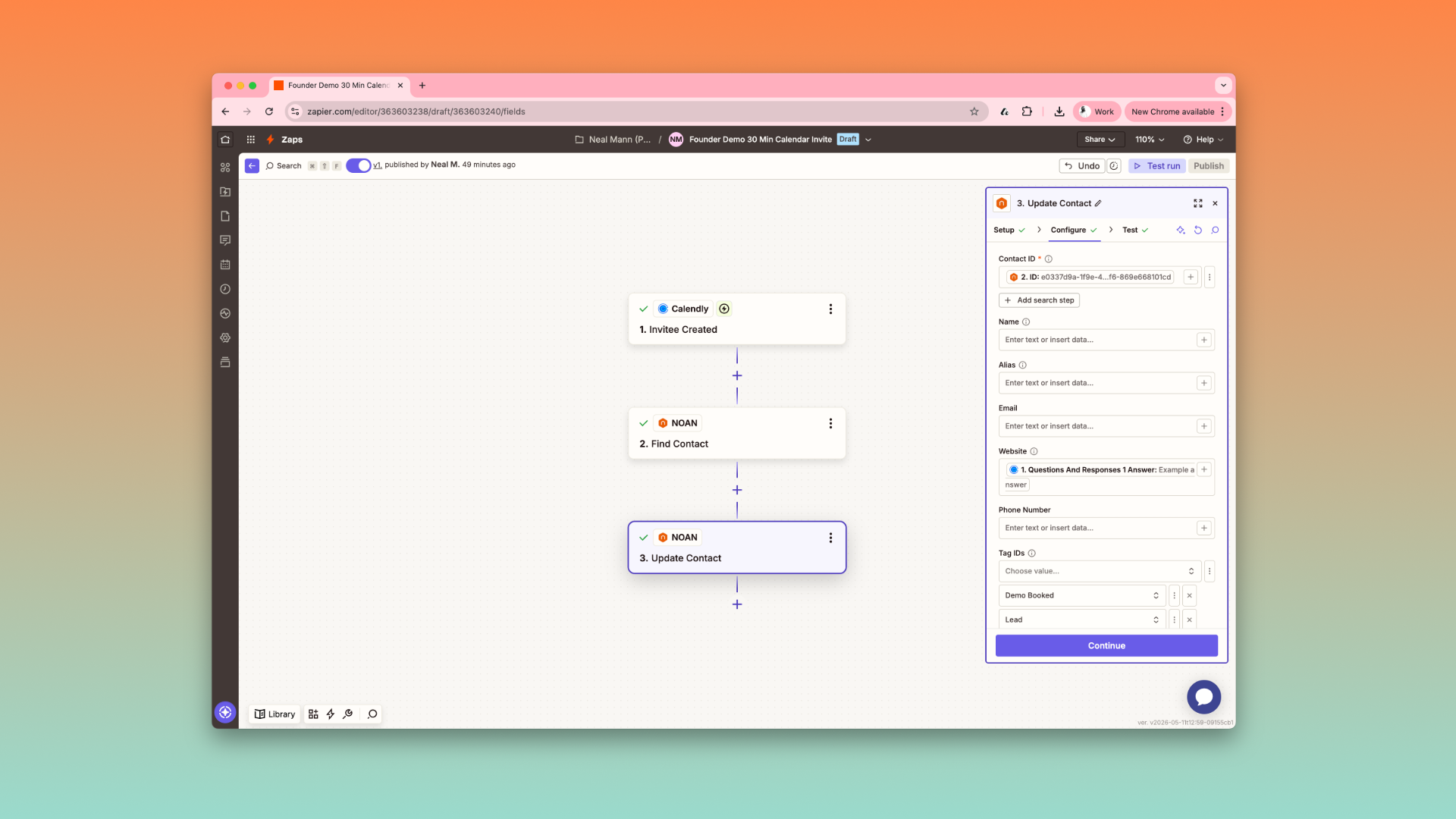
**Why it matters:**Tags in NOAN are more than labels—they’re workflow triggers. Tag a note, contact, or asset, and you can automate outbound emails via integrations like Zapier.
How to do it:
-
Tag an asset (e.g., “Newsletter”).
-
Set up a Zapier workflow to send a newsletter to your mass email sender like mailchimp when that tag is applied in Create.
Final Thoughts
NOAN turns email from a chore into a strategic advantage. By connecting Gmail, leveraging your Network, and customizing tones, you can create, reply, and segment emails at scale—without losing the personal touch.
**Ready to try it?**Connect your Gmail, set your tones, and ask the assistant to draft your next email. You’ll never look at your inbox the same way again.
.png)
.png)
.png)