Managing your sales pipeline and network shouldn’t require juggling multiple platforms or wrestling with clunky tools. In a recent subscriber webinar, we showcased how NOAN acts as your “business brain” - streamlining everything from lead capture to onboarding, all in one AI-native workspace. Here’s a practical, actionable walkthrough so you can replicate this flow and supercharge your own sales process.
1. Seamless Lead Capture: From Website to Network
The Flow:
-
Visitors land on your website and click the “Book a Call” button.
-
This triggers a Calendly session, letting them pick a time with you.
-
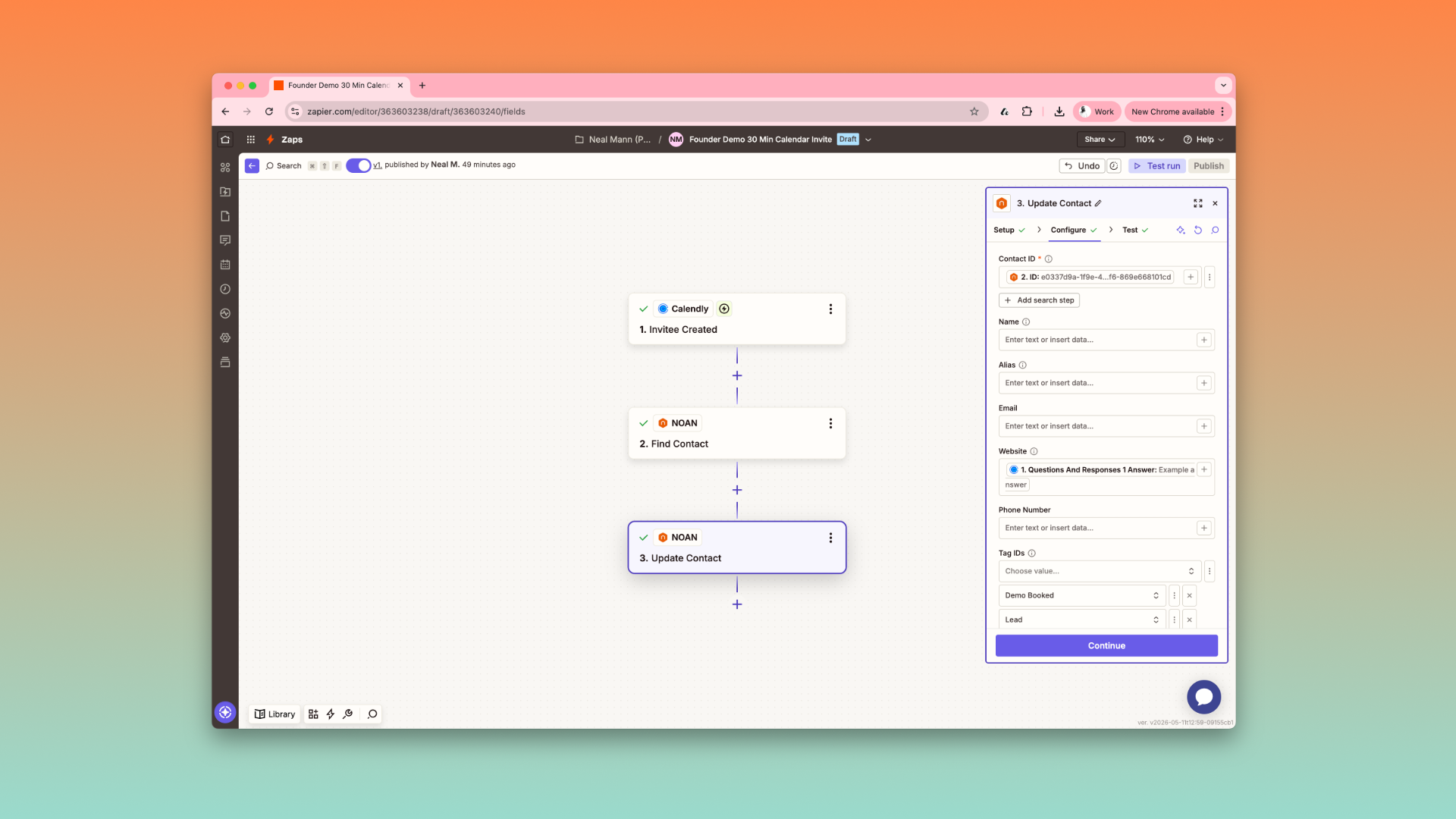
Behind the scenes, a Zapier automation (“zap”) fires:Checks if the contact is already in your NOAN network.
-
If not, auto-creates the contact, adds details, and tags them as a lead.
**Why it matters:**No more manual entry or lost leads - every prospect is captured and organized automatically.
2. Building an AI-Native Network
What Makes NOAN Different:
-
Each contact is enriched with context: meeting notes, company, and relationship history.
-
The assistant understands and updates this context, making your network smarter over time.
Custom Views:
-
Filter and save views by tags (e.g., “Leads,” “Demo Booked,” “Investors”).
-
Instantly see who’s booked a demo, who’s ready for onboarding, or who needs follow-up.
**Pro Tip:**Create as many views as you need - hot leads, investors, subscribers, etc.—and switch between them in seconds.
3. Connecting Network & Tasks: One Unified Pipeline
Task Management:
-
NOAN’s task board is your master hub—no more scattered Trello boards.
-
Assign tasks to team members, set deadlines, and track progress.
-
Link tasks directly to contacts (e.g., “Onboard Dave Jones”), so you always know who’s at each stage.
Visibility:
-
Make boards and tasks public or private as needed.
-
Use widgets to see the latest leads and activity at a glance.
**Best Practice:**Structure your tags in tasks at a higher level (Sales, Marketing, Customer Success) for a clear, cross-functional view.
4. Tagging for Pipeline Stages & Organization
How to Use Tags:
-
In your network, tags represent pipeline stages (e.g., “Lead,” “Demo Booked,” “Demo Done,” “Target Investor”).
-
In tasks, tags reflect business functions (e.g., “Sales,” “Customer Success”).
Creating & Managing Tags:
-
Easily create tags via the assistant or in settings.
-
Assign colors for quick visual cues.
-
Add clear descriptions—these help the assistant use tags intelligently and power future features.
Example Workflow:
-
Tag a contact as “Demo Booked.”
-
After the demo, update to “Demo Done.”
-
Filter views to see who’s ready for the next step or hasn’t converted yet.
5. Automations & Integrations
Zapier Integrations:
-
Connect NOAN to Calendly, Typeform, or other lead sources.
-
Automate subscriber tagging and onboarding when a demo converts.
Meeting Notes:
- Use a note-taker like Granola to automatically add meeting notes to contacts, keeping context fresh and actionable.
6. Adding Contacts on the Go
Quick Add:
-
Out and about? Just tell NOAN:“Add a new contact: [Name], [Email], met at [Event].”
-
Instantly creates the contact, tags them as a lead, and you can add onboarding tasks right away.
7. Daily Pipeline Management with AI
-
Ask the assistant: “Who are my hot leads today?” or “What was my last meeting with [Contact]?”
-
Get instant, context-rich answers - no digging required.
-
Email contacts directly from NOAN if you’ve connected Gmail.
Final Thoughts
With NOAN, you get a unified, AI-powered workspace that:
-
Captures and organizes every lead automatically.
-
Connects your network and tasks for seamless pipeline management.
-
Lets you filter, tag, and view your business exactly how you want.
-
Automates repetitive steps, so you focus on building relationships and closing deals.
**Ready to simplify your sales process?**Try setting up your own pipeline flow in NOAN and experience the difference of a true business brain.
Stay tuned for our next guide on using NOAN’s natural language workflows (“memories”) to automate even more of your sales process!
.png)
.png)
.png)