If you’re juggling multiple meetings with users, investors or partners or have multiple clients, keeping your notes organized and actionable is a game-changer. By connecting Granola with NOAN, you can automatically send your meeting notes straight into your NOAN workspace—turning NOAN into your business brain, ready to reference and act on every conversation.
Here’s a step-by-step guide to set up this powerful workflow.
What You’ll Need
-
A paid Granola account(Free accounts don’t support Zapier integrations.)
-
A Zapier account(Zapier is the bridge between Granola and NOAN.)
-
Your NOAN API key(Found in your NOAN project’s Integrations section.)
Step 1: Get Your NOAN API Key
-
In NOAN, go to Integrations.
-
Copy your API key—you’ll need this to connect third-party apps.
-
Note: The API key is project-specific. If you manage multiple businesses or clients, each project in NOAN gets its own key. This lets you send notes to the right workspace every time.
Step 2: Set Up Your Granola Folder
-
In Granola, create a dedicated folder for each business or client (e.g., “NOAN”).
-
This folder will be the trigger point for your Zapier automation.
-
You can keep folders private or share them with your workspace.
Step 3: Build Your Zap in Zapier
-
**Trigger:**Choose Granola as the app.
-
Set the trigger to “Note added to folder”.
-
Select your dedicated Granola folder (e.g., “NOAN”).
-
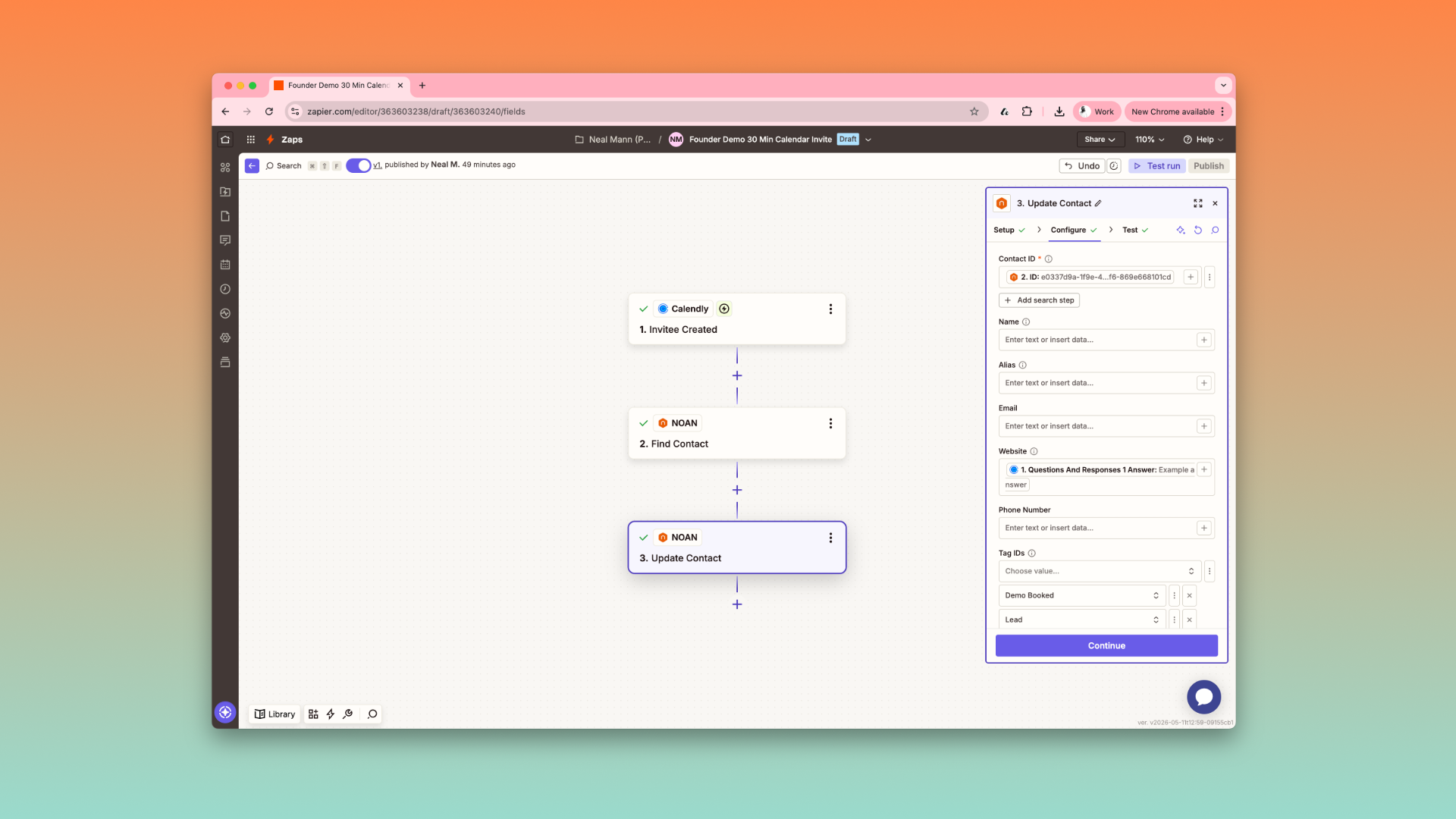
Action 1: Find or Create Contact in NOANChoose NOAN as the app.
-
Select the “Find Contact” action.
-
Use the attendee’s email as the search query—this checks if the contact already exists in your NOAN Network.
-
If the contact doesn’t exist, enable “Create NOAN Contact”. This will auto-create a new contact with the attendee’s name and email.
-
Action 2: Add Memo to ContactAdd another NOAN action: “Add Memo to Contact”.
-
Use the contact ID from the previous step.
-
For the memo, select enhanced notes from Granola (not the full transcript). This keeps things concise and actionable.
-
The memo will include a link back to the Granola chat for context.
Step 4: Use the Workflow
-
After every call, add your meeting note to the correct Granola folder.
-
Zapier will automatically:Find (or create) the right contact in NOAN.
-
Attach the enhanced meeting notes as a memo.
Pro Tips & Limitations
-
**One Contact per Note:**The Zap can only attach notes to one contact at a time. If your meeting has multiple attendees, pick the primary person in Granola, remove other emails, and send the note. (Otherwise, the Zap will fail.)
-
**Multiple Projects:**Each NOAN project has its own API key and can be linked to different Granola folders—perfect for agencies or multi-business owners.
-
**Instant Reference:**Once set up, your NOAN assistant (and your team) can instantly reference any meeting note, making follow-ups and context retrieval effortless.
In Summary
Three steps:
-
Add a note to your Granola folder
-
Find (or create) the contact in NOAN
-
Add the memo to the contact
That’s it! You’ve now automated your meeting notes workflow, making NOAN your always-on business brain.
**Need more automation ideas?**Explore other NOAN Zapier integrations to supercharge your business operations.
.png)
.png)
.png)